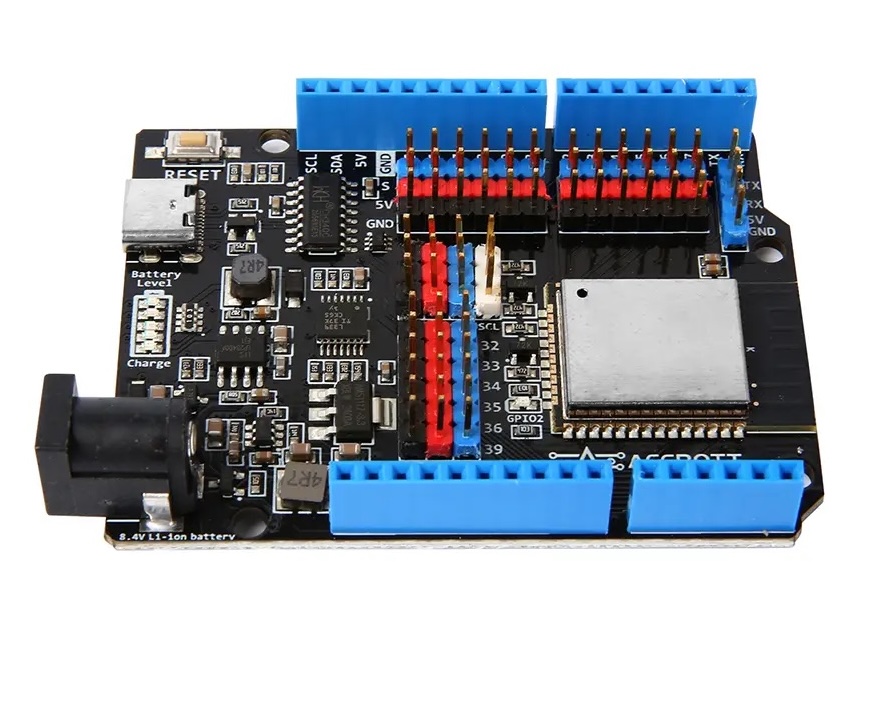
Description
| Type | Development Board |
| Description | ESP32 Development Board |
| Model Number | QA019 |
| Place of Origin | Guangdong, China |
| Brand Name | ACEBOTT |
| Series | Development Board |
| OS | Not applicable |
| Product Name | ESP32 PLUS Development Board |
| Microcontroller | ESP32 |
| Description | Compatible with Arduino UNO R3 |
| Digital I/O Pins | 14 (D0-D13) |
| Operating Voltage | 5V |
| Service | OEM/ODM of logo and color |
| Warranty | 1 year |
| Explanation | module |
| Type | Development Board |
PCB Description
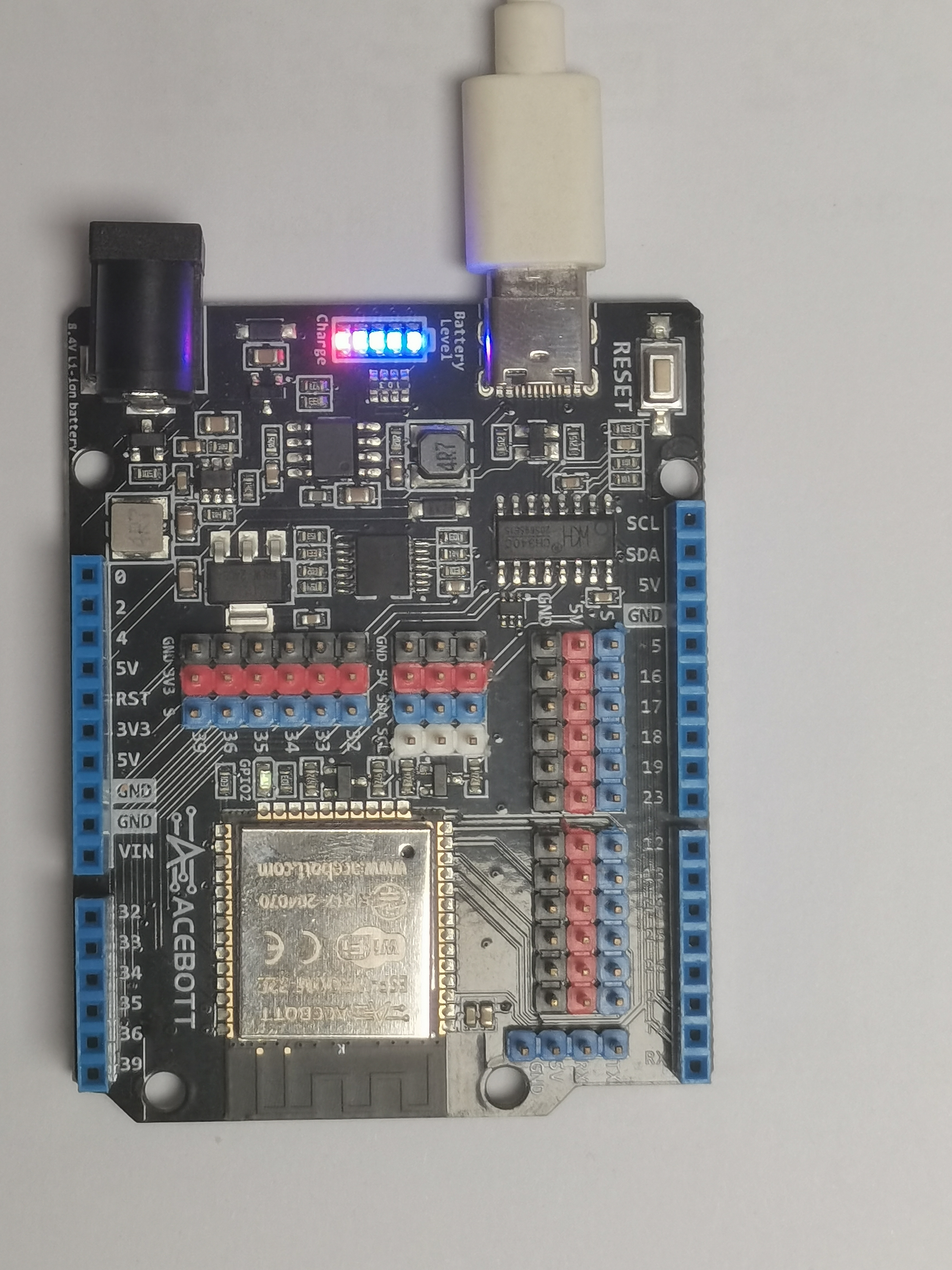
The figure illustrates the GPIO pins of the ESP32 Max 1.0 control board and their corresponding functions, including ADC, DAC, PWM, I2C, and SPI pins.
Input pins only: GPIO 34/GPIO 35/GPIO 36/GPIO 39
Default I2C pins: GPIO 21 (SDA)/GPIO 22 (SCL)
DAC pins: GPIO 25 (DAC1)/GPIO 26 (DAC2)
Package List
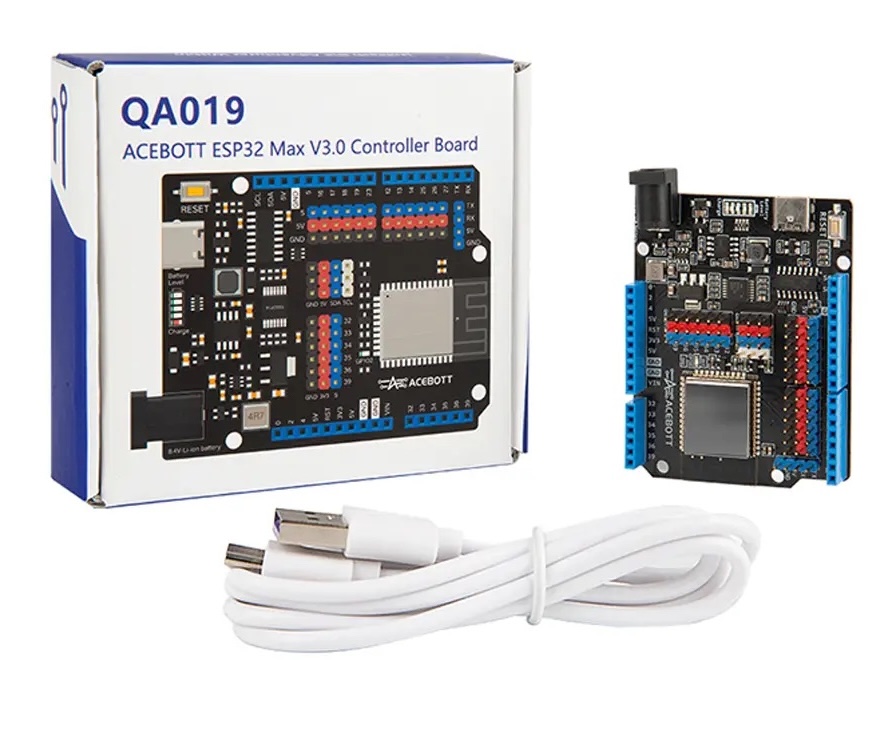
ESP32 Max V3.0 Controller Board * 1 block
Type-C cable * 1pc
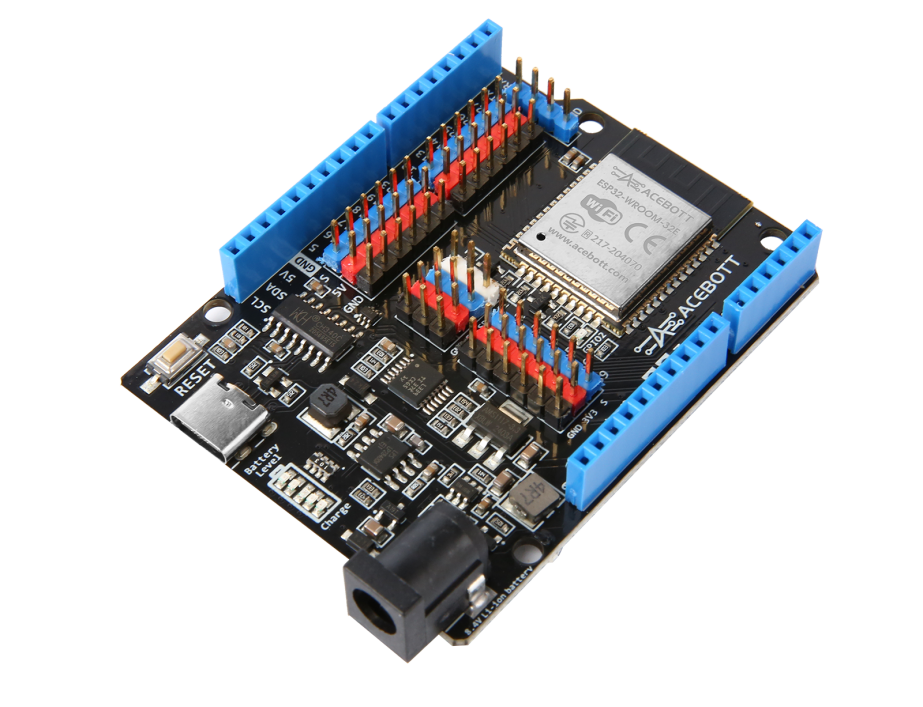
QA019 ESP32 Max V3.0 Controller Board
1.Introduction
The ESP32 Max 3.0 controller board is a low power consumption, high performance microcontroller, very suitable for the development of the Internet of Things. It has a 240 MHz dual-core processor, 520 KB of RAM, and 4MB of flash memory. Built-in WiFi and Bluetooth 4.2 module, available for wireless communication. With 34 GPIO ports, it can connect and control various peripherals.
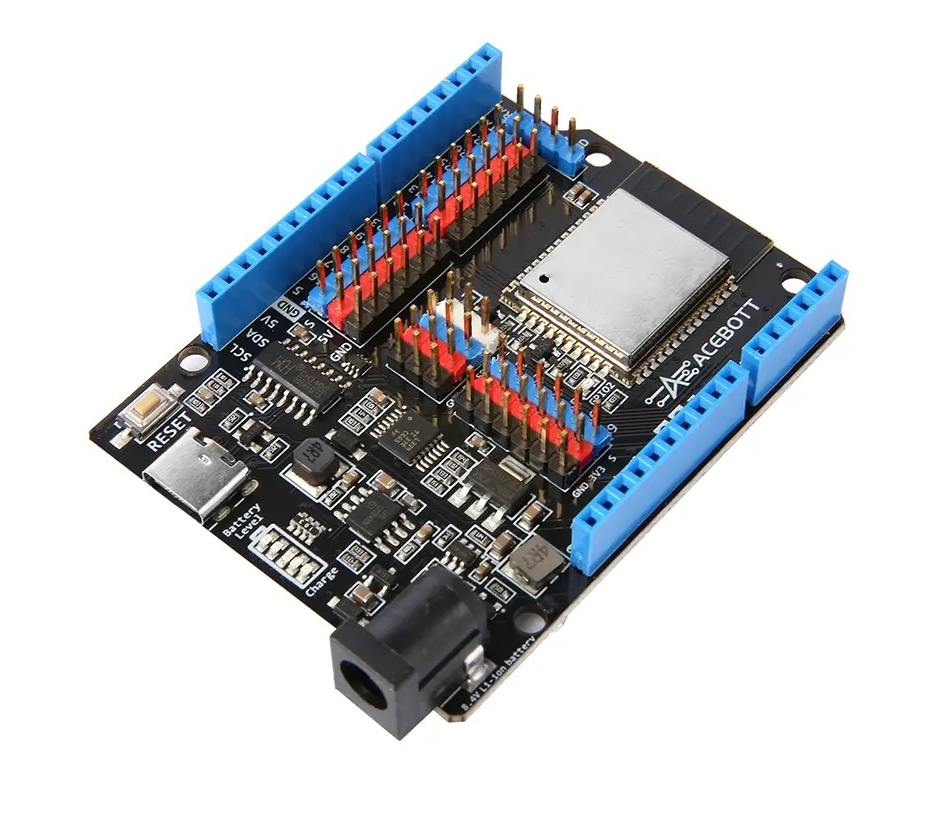
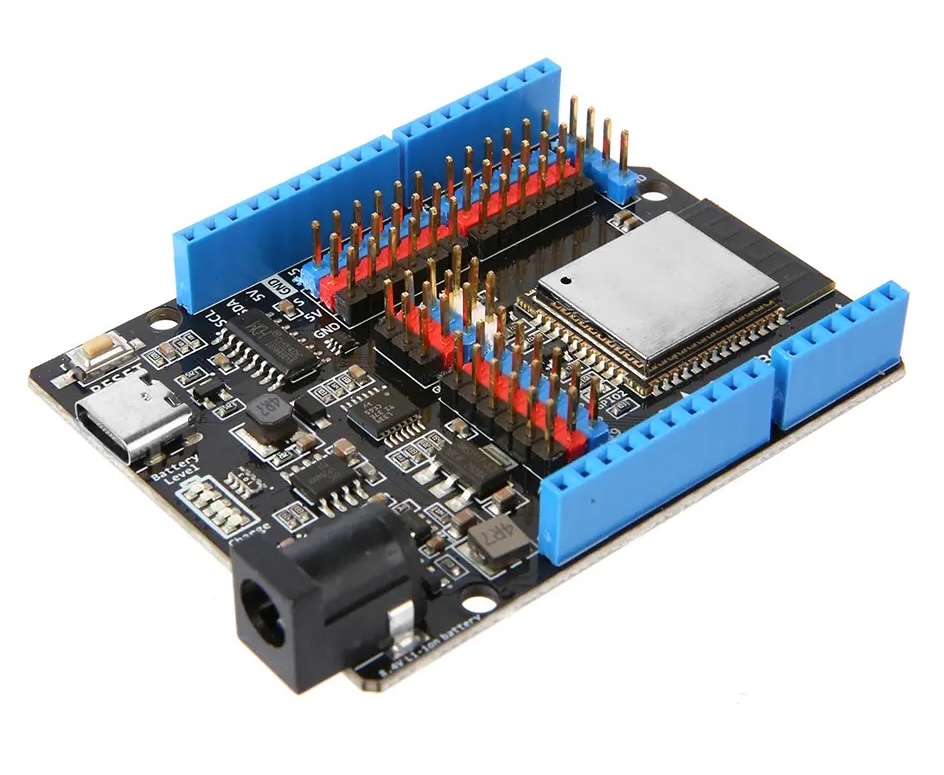
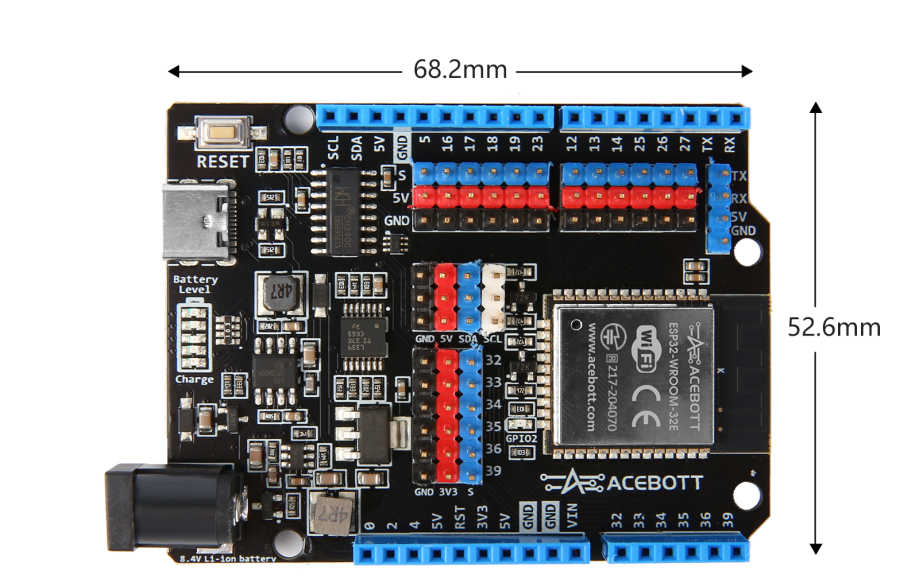
The ESP32 Max 3.0 controller board is also equipped with a rechargeable function. The controller board has five LED modules, and the first 4 LED lights correspond to the current power of the battery. When the battery is full, the four LED lights are fully on the blue light, and when the power is reduced, the number of lights will also decrease. The fifth light indicates whether the battery is charging, when it is red, it means the battery is charging, when it is not on, it means the battery is full or is not charging.
2.Features
The Type-C interface for enhanced compatibility
The pin interface is rich, to meet the needs of the work construction
Foot color is clear, easy to distinguish and wiring
Configure the charging function to realize the convenient battery charging
Onboard power display light, control the battery status at any time
3.Specifications
| Connectivity | WI-FI | Bluetooth LE |
|---|---|
| Chip | ESP-WROOM-32 |
| Clock | 240MHz |
| ROM | 448KB |
| SRAM | 520KB |
| FLASH | 4MB |
| Interfaces | UART | I2C | SPI | CAN |
| Input Voltages | 6-18V |
| Pinout | 25(DIGITAL) | 15(ANALOG)| 25(PWM) | 2(DAC) | 2(UART) | 2(SPI) | 1(I2C) |
Hint
The other parameters of ESP32 Max V3.0 are the same as ESP32 Max V1.0 with the following differences:
1.The input voltage of ESP32 Max V1.0 is 6-18V, but the input voltage of ESP32 Max V3.0 is 8.4V, it can only support 2 lithium batteries, do not connect to the dry battery!!!
2.ESP32 Max V3.0 has charging function and battery level display function, ESP32 Max V1.0 does not have.
3.ESP32 Max V3.0 has more high-current protection than ESP32 Max V1.0.
4.PCB Description
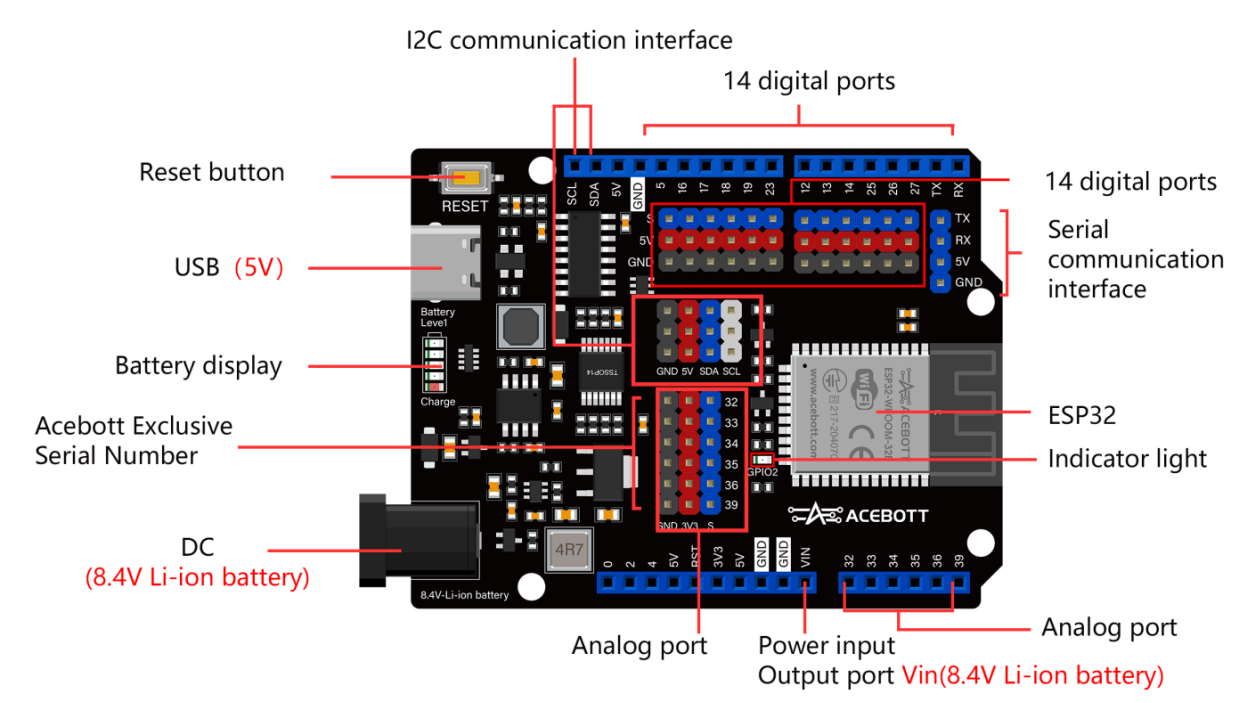
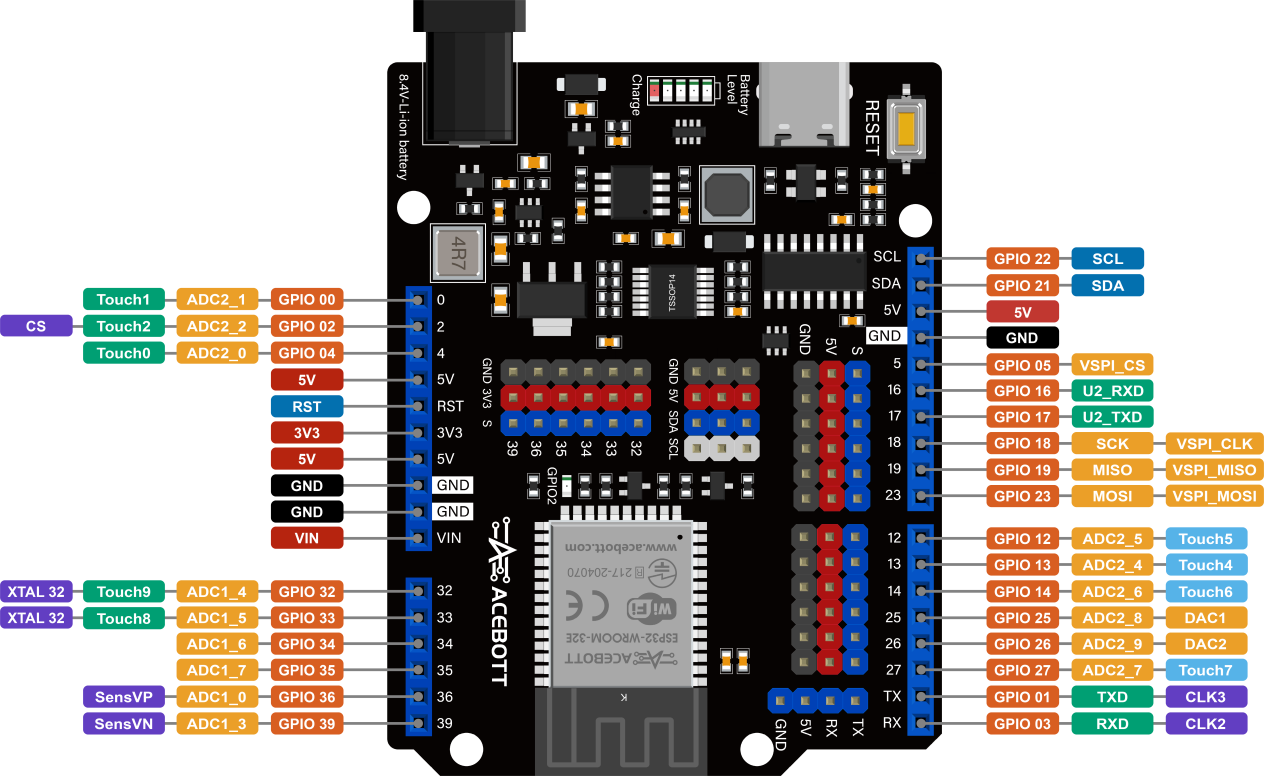 The figure illustrates the GPIO pins and the corresponding functions of the ESP32 Max 1.0 controller board, including ADC, DAC, PWM, I2C, SPI pins, etc.
Only Input Pin: GPIO 34/GPIO 35/GPIO 36/GPIO 39
Default I2C Pin: GPIO 21(SDA)/GPIO 22(SCL)
DAC Pin: GPIO 25(DAC1)/GPIO 26(DAC2)
5.Note
(1)The ADC2 pin cannot be used when using Wi-Fi. Therefore, if you can’t get the value from the ADC2 GPIO on Wi-Fi, consider using the ADC1 GPIO instead.
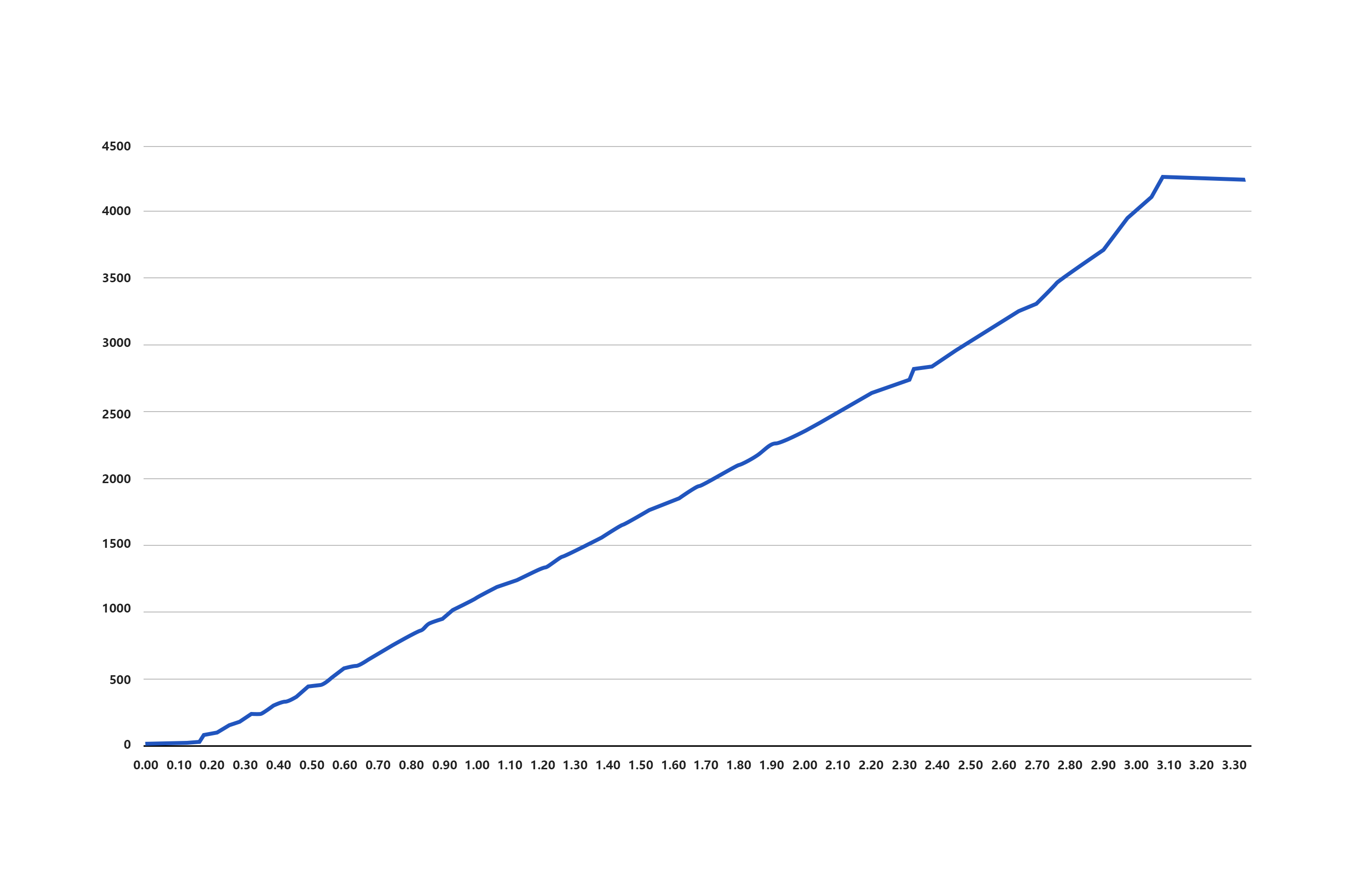
(2)The ADC input channel has 12-bit resolution. This means that you can get analog readings between 0 and 4095, where analog value 0 corresponds to 0V and analog value 4095 corresponds to 3.3V. You can also set the resolution of the channel as well as the ADC range on the code.
(3)ESP32 ADC pins do not have linear behavior. You might not be able to distinguish between 0 and 0.1V, 3.2 and 3.3V, be aware of this when using ADC pins and you will get a data image similar to the one shown below.
6. Detailed:
Copy the URL in the lower box and add it to the “Additional Boards Manager URLs”.
http://arduino.esp8266.com/stable/package_esp8266com_index.json https://www.arduino.me/package_esp32_index.json
Step4 | Upload the LED lighting program
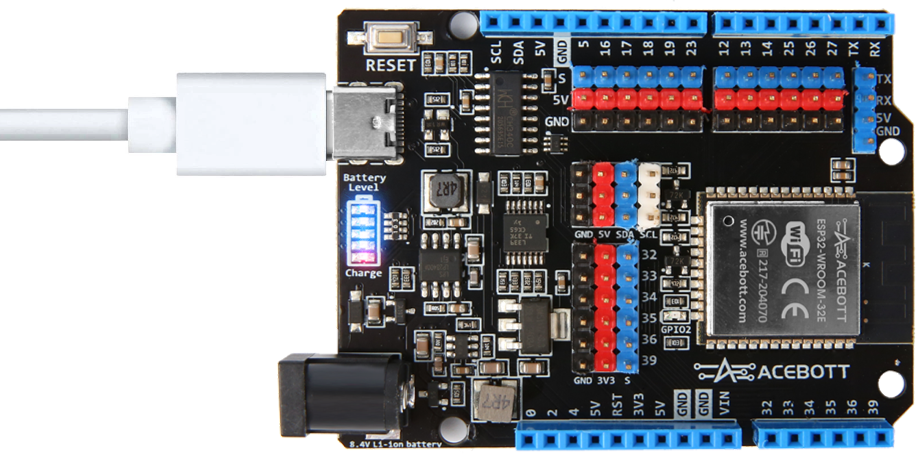
Connect the board to the computer using a Type-C data cable.The LED should go on.
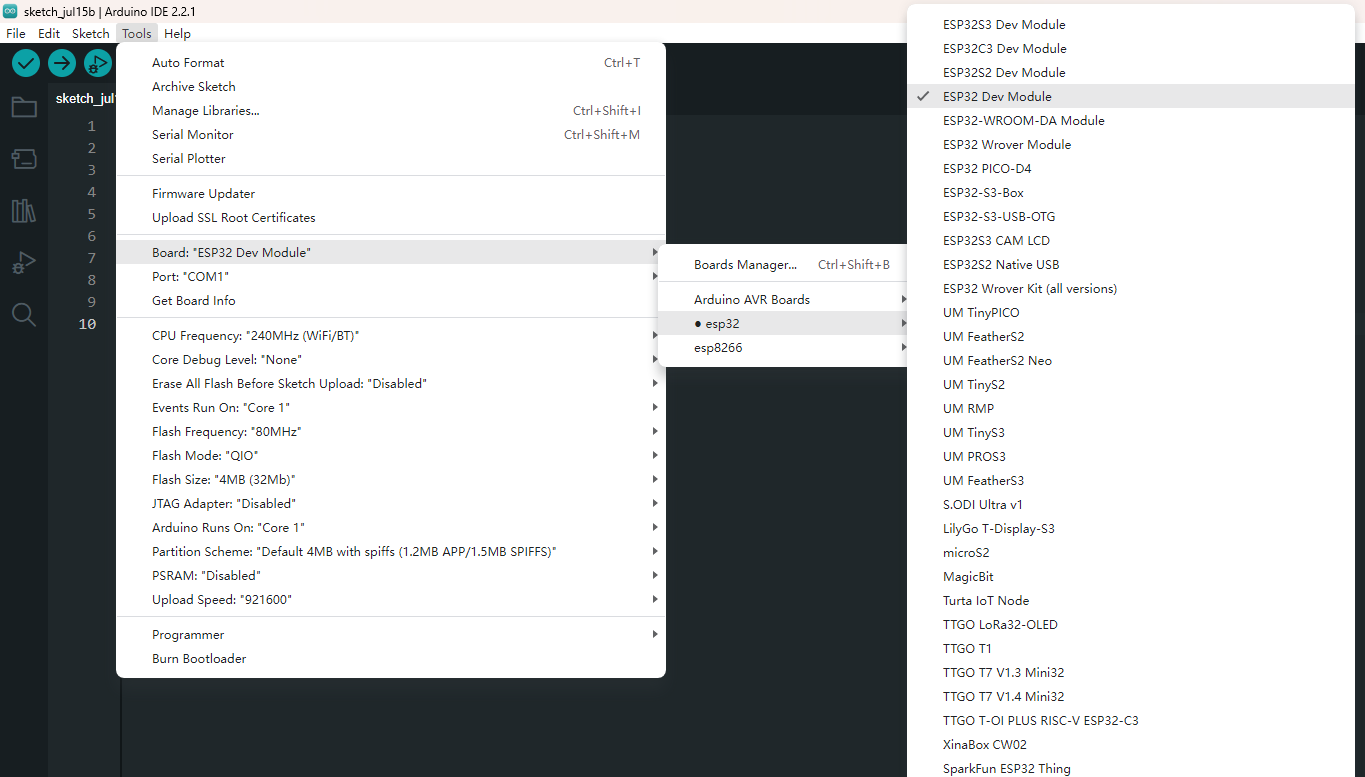
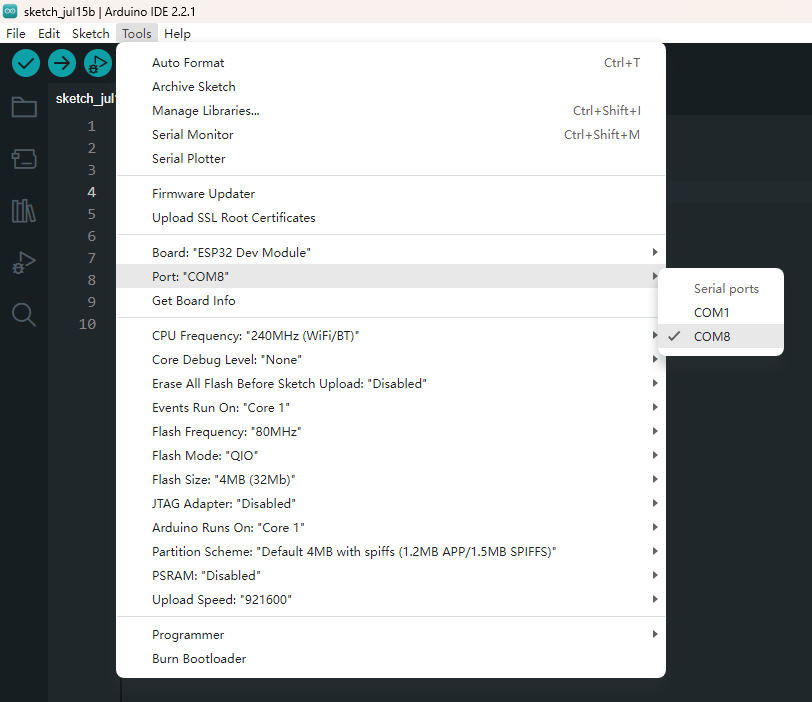
 Select “ESP32” -> “ESP32 Dev Module” from the Tools > Board menu
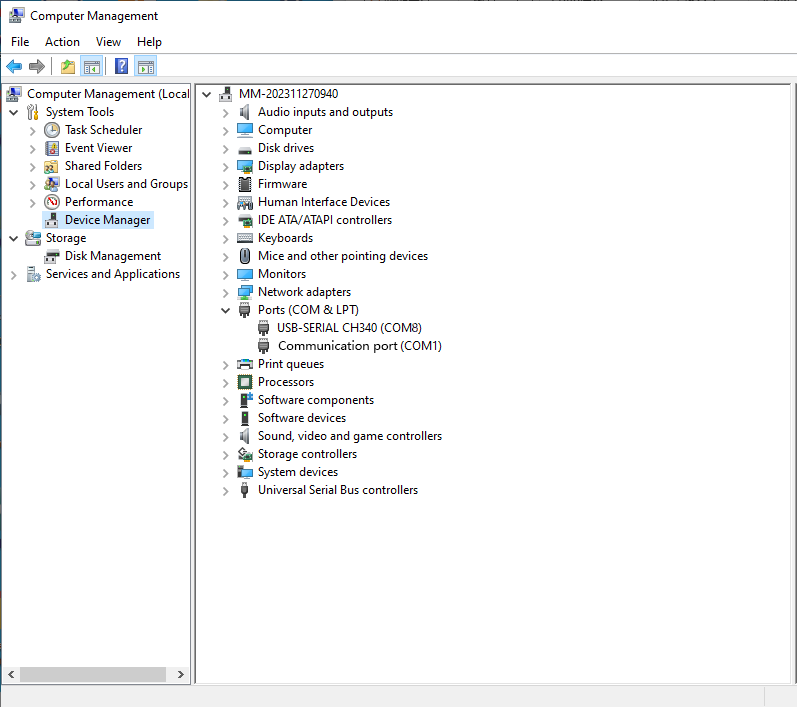
 Select the serial device of the board from the Tools | Serial Port menu. This is likely to be COM8 or higher (COM1and COM2 are usually reserved for hardware serial ports). To find out, you can disconnect your board and re-open the menu; the entry that disappears should be the board. Reconnect the board and select that serial port. Here you should select COM 8 as below.
 You also can find the right ports shown on Device Manager.
 Upload the Program.
// the setup function runs once when you press reset or power the board
void setup() {
  // initialize digital pin 2 as an output.
  pinMode(2, OUTPUT);
}

// the loop function runs over and over again forever
void loop() {
  digitalWrite(2, HIGH);  // turn the LED on (HIGH is the voltage level)
  delay(1000);                      // wait for a second
  digitalWrite(2, LOW);   // turn the LED off by making the voltage LOW
  delay(1000);                      // wait for a second
}
click the “Upload” button to upload the code. will appear in the status bar.
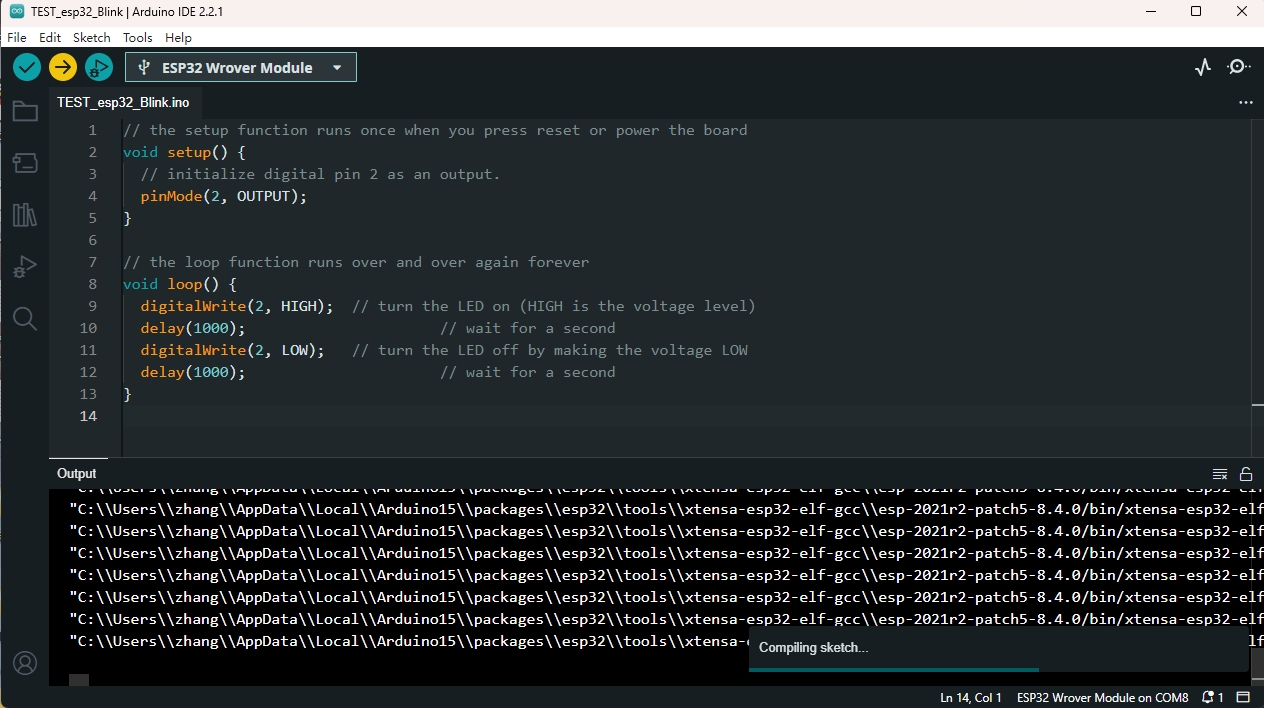 Wait a few seconds. If the upload is successful, the message “Done uploading.”
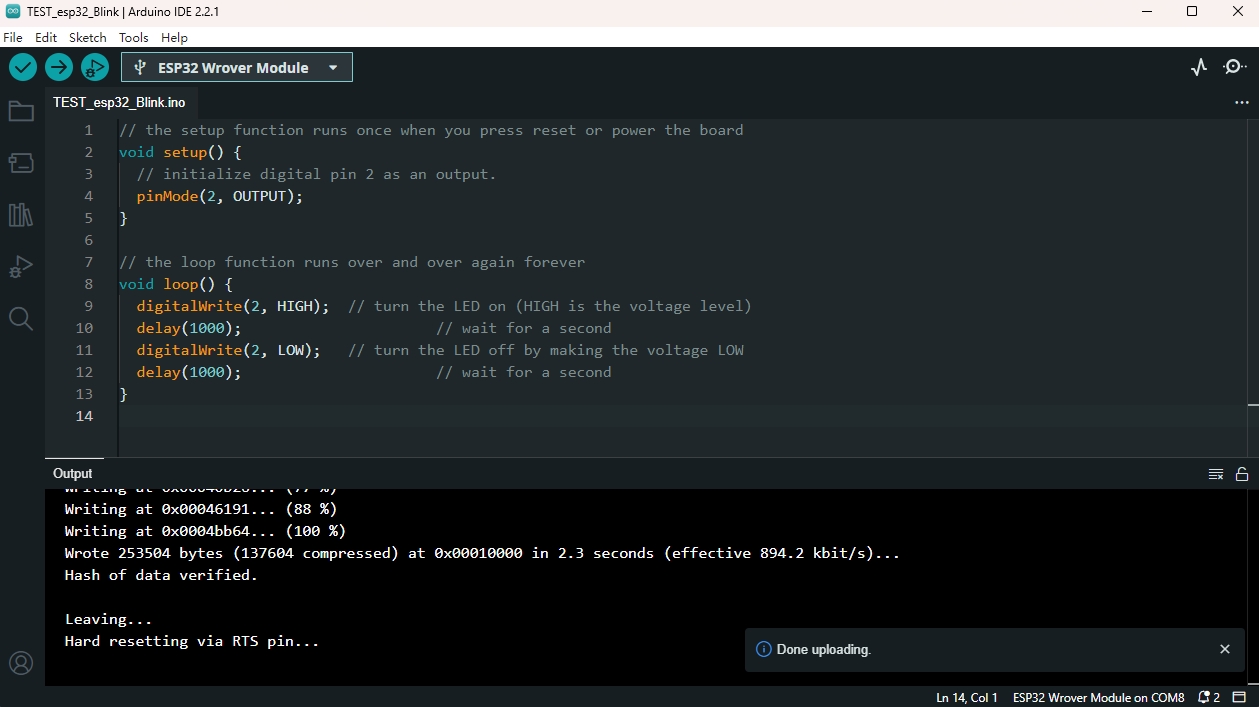 And the LED on the board blink.
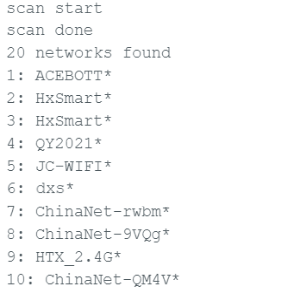
 If your tests were successful, you can try to upload the following code. When a network is found in the environment, the number and name of all nearby networks will be obtained and displayed in the serial port, and the indicator will light up.
/*
When a network is found in the environment,
the number and name of all nearby networks will be obtained and displayed in the serial port,
and the blue indicator will light up.
*/
#include "WiFi.h"
void setup()
{
    Serial.begin(115200);
    pinMode(02,OUTPUT);
    //set WiFi to station mode and disconnect from an AP if it was previously connected
    WiFi.mode(WIFI_STA);
    WiFi.disconnect();
    delay(100);
    Serial.println("Setup done");
}
void loop()
{
    Serial.println("scan start");
    // WiFi.scanNetworks will return the number of networks found
    int n = WiFi.scanNetworks();
    Serial.println("scan done");
    if (n == 0) {
        Serial.println("no networks found");
    } else {
        Serial.print(n);
        Serial.println(" networks found");
        digitalWrite(2, HIGH);//the blue indicator lights up
        for (int i = 0; i < n; ++i) {
            //print SSID and RSSI for each network found
            Serial.print(i + 1);
            Serial.print(": ");
            Serial.print(WiFi.SSID(i));
            Serial.println((WiFi.encryptionType(i) == WIFI_AUTH_OPEN)?" ":"*");
            delay(10);
        }
    }
    Serial.println("");
    // wait a bit before scanning again
    delay(5000);
}
The serial port display effect diagram is as follows:
7.Package List
ESP32 Max V3.0 Controller Board * 1pcs
Type-C cable * 1pcs